

Nowadays, WhatsApp has become an important part of our daily life. As soon as we wake up in the morning, the first thing we do is check messages, and before going to sleep at night, the last thing is also the same. Talking to friends, office work, important information everything happens on WhatsApp. In such a situation, many times we need our old chats, like an important message, photo, or a record of conversation. But the question is, how to download or save WhatsApp chat?
If you also have the same question in your mind, then in this article we are going to explain the complete method in very simple language, so that you can save your chat without any problem.
Easy Way to Export WhatsApp Chat
If you want to download a specific chat, whether it is with an individual or a group, then WhatsApp provides an Export Chat feature for this. This method is the easiest and fastest.
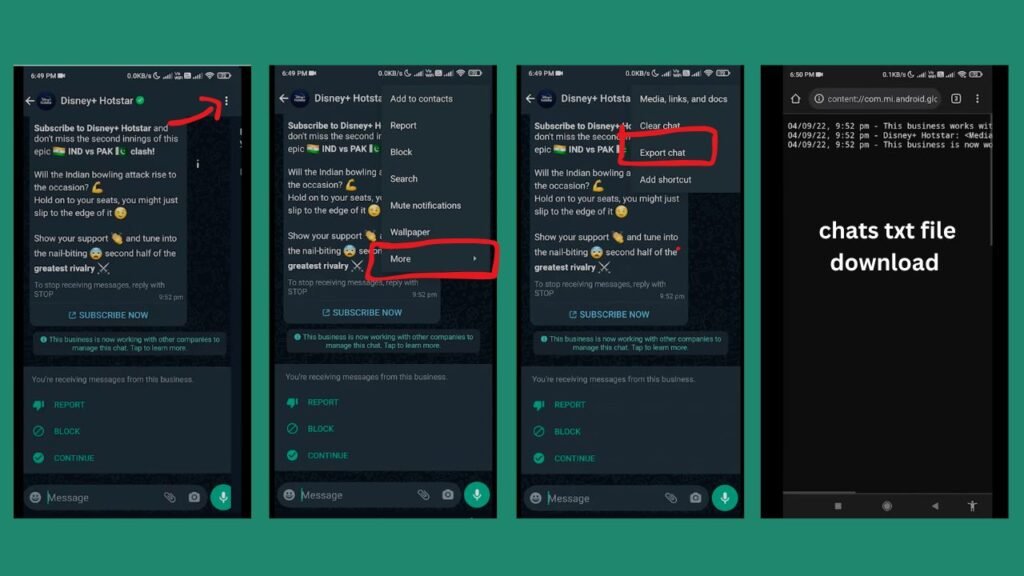
- First of all, you have to open WhatsApp and select the chat that you want to download. After opening the chat, click on the three dots (⋮) given in the top corner.
- There you will see the option of More. Tap on it. After that, you will get the option Export Chat.
- Now WhatsApp will ask whether you want to export the chat with media (like photos and videos) or without media. If you only want to save messages, then choose Without Media, and if you want complete data, then click on Include Media.
- After this, you can save this file to email, Google Drive, or your phone’s file manager.
- This chat is usually saved as a .txt file, which you can easily read anywhere.
What is WhatsApp Chat Backup and Why is it Important
Now let’s talk about chat backup. There is a difference between Export Chat and Backup. In export, you save a single chat, whereas in backup, your entire WhatsApp chat is saved.
The backup option in WhatsApp is given so that if your phone gets damaged, lost, or if you buy a new phone, then your old chats can be recovered. For Android users, this backup is saved on Google Drive, while on iPhone it is saved on iCloud.
To take a chat backup, you have to go to WhatsApp settings. There you will find the Chats option, and then click on Chat Backup. After that, as soon as you press the Back Up button, your entire chat backup will start.
How to Restore Old WhatsApp Chats
Many times it happens that we accidentally delete chats or we get a new phone. In such cases, restoring old chats becomes very important.
For this, you first need to uninstall WhatsApp and then install it again. When you log in by entering your mobile number, WhatsApp will ask whether you want to restore the old backup.
As soon as you click on Restore, your old chats will start coming back. Keep in mind that this will only work if you have taken a backup earlier.
How to Save WhatsApp Chat on Computer
If you want to save your WhatsApp chat on a computer or laptop, then there is also a method for that. Especially for iPhone users, some tools like TouchCopy are available, with the help of which you can save your chats in PDF, HTML, or text format.
The benefit of this is that you can print your chats, keep them safe, or share them with someone else. However, while using such tools, make sure that you use only trusted software.
Difference Between Chat Export and Backup
Many people consider Export and Backup to be the same, but there is a big difference between the two. Export Chat is used when you want to save a single chat separately, while Backup saves your entire WhatsApp history.
The exported file can be read and shared, but it cannot be imported back into WhatsApp. On the other hand, backup is used to restore your chats.
Things to Keep in Mind While Downloading WhatsApp Chat
Whenever you download or export your WhatsApp chat, it is important to keep a few things in mind. If you export chats with media, the file size can be large and may take time to send.
Also, your chats may contain personal information, so avoid sharing them with unknown people. If you are saving chats on email or cloud, make sure to take care of your privacy.


Nice to meet you this website